Global Environment Variables
Global environment variables can be used across all collections and requests within a workspace. Think of them as a global store accessible throughout the app, eliminating the repetitive task of defining the same variables in every collection.
Bruno 3.0.0+: Global environments are now stored within each workspace in the environments/ folder, making them version-controllable and workspace-scoped.
Bruno 2.x and earlier: Global environments are stored in the application’s data folder. You can access them by visiting the About section from Preferences and navigating to the AppData path location.
Storage Location
Bruno 3.0.0+ (Workspace-based)
In Bruno 3.0.0 and later, global environments are stored as .yml files in the environments/ directory within your workspace:
my-workspace/
├── workspace.yml
├── collections/
└── environments/
    ├── development.yml
    ├── staging.yml
    └── production.yml
Each environment file contains the environment name and variables:
name: development
variables:
  - name: api_url
    value: http://localhost:3000
    enabled: true
    secret: false
    type: text
This structure provides several benefits:
- Version Control - Global environments can be committed to Git alongside your workspace
- Team Collaboration - Share environments with team members through your repository
- Workspace Isolation - Each workspace maintains its own set of global environments
Bruno 2.x and Earlier (Application-based)
In earlier versions, global environments are stored in Bruno’s application data folder and are shared across all collections in the application.
Create a Global Environment Variable
- Go to the Environments section (top right corner).
- Navigate to the Global tab and click on Create.
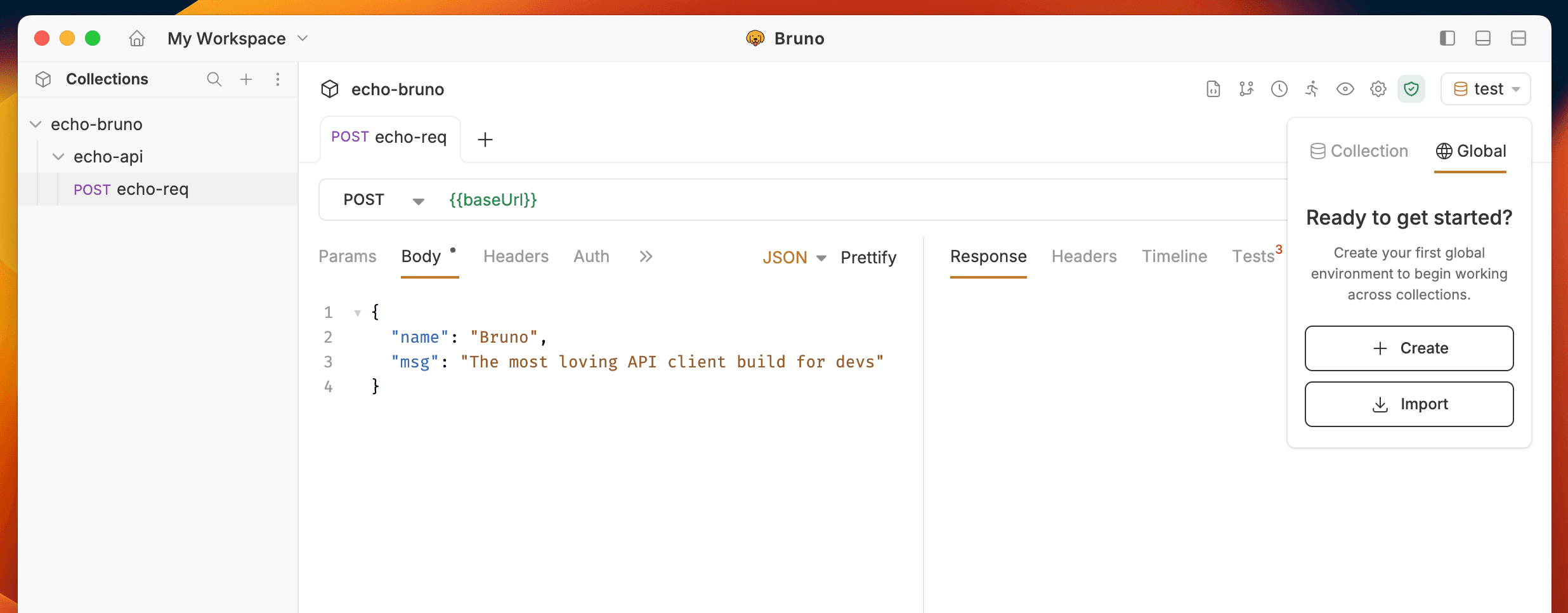
- (Optional) If you need to import an existing environment, you can use the Import Environment option.
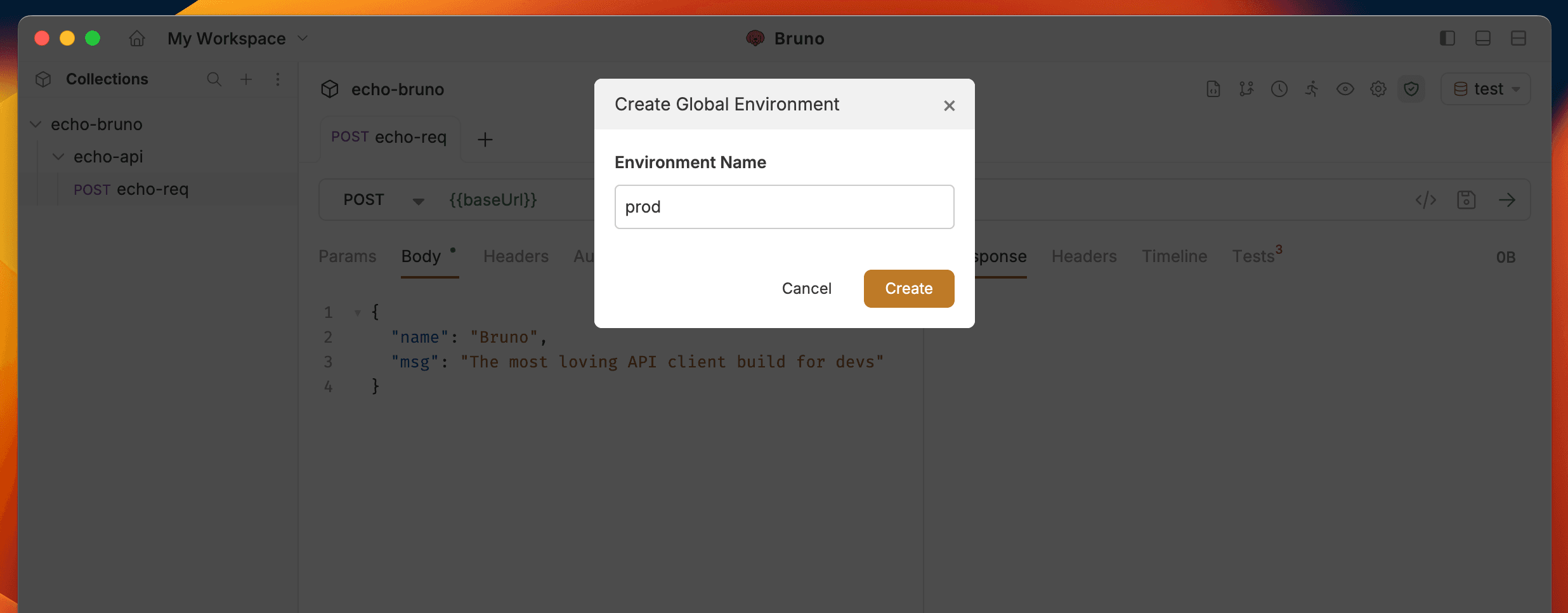
- Enter a name for your environment and click Create.
- Add a variable by specifying the Name and Value.
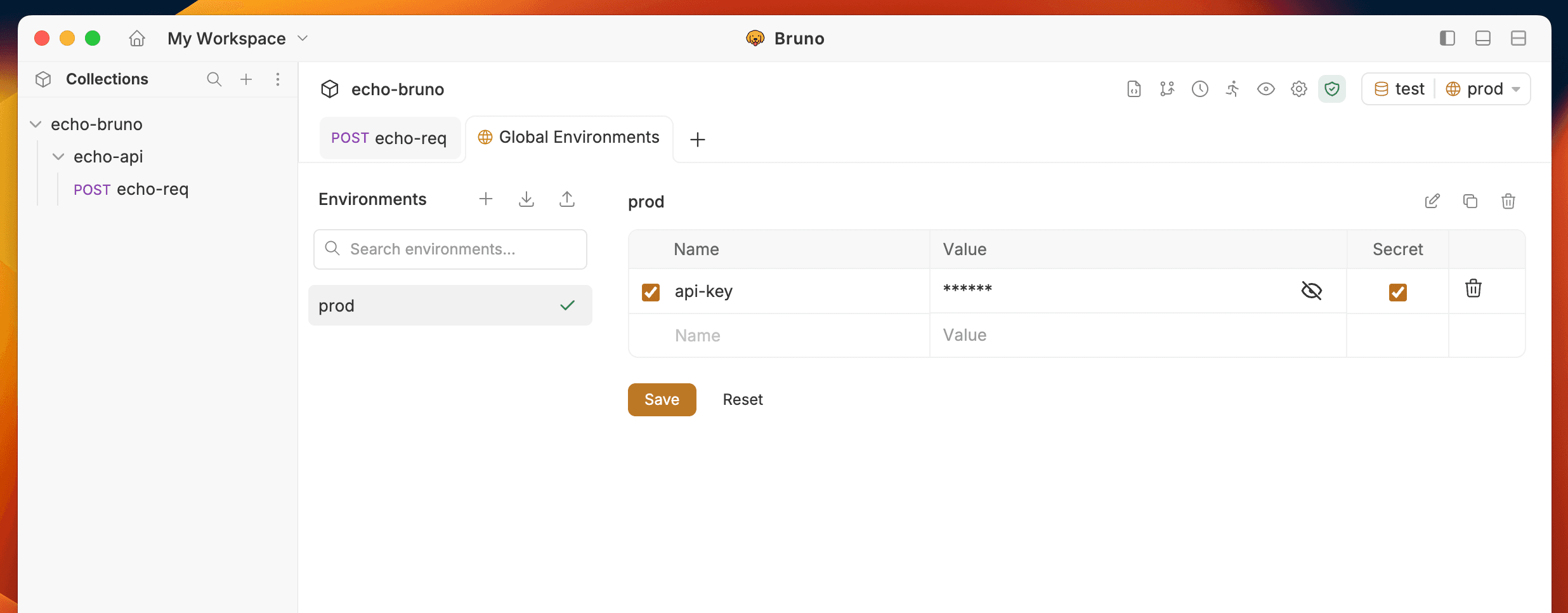
- Click Save.
Your global environment variable is now created and can be accessed across your workspace.
You can click the secret checkbox to hide the values of variables while hovering over them. Secret values are stored securely and are not saved to the environment file.
Using Global Environment Variables
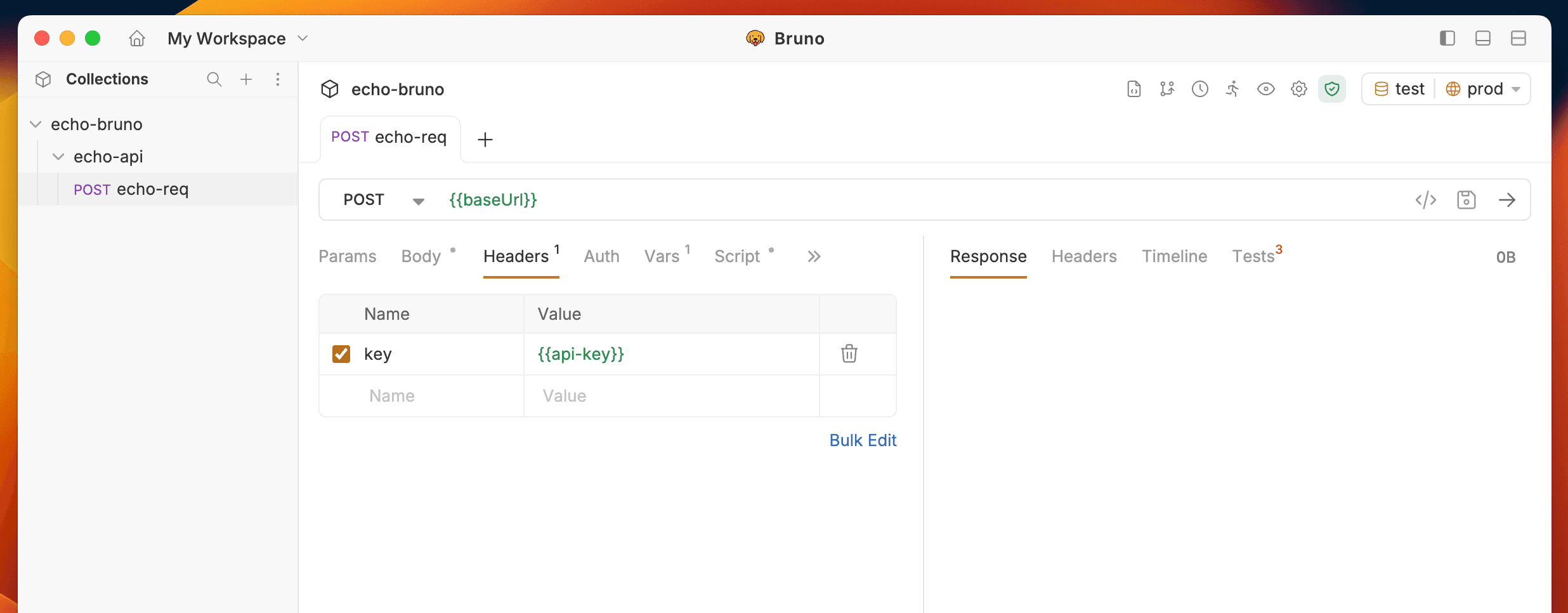
To use a global environment variable, reference it using the format {{var_name}} in any request or collection. These variables can be combined with other variables and used throughout your workspace, making them ideal for consistent value sharing.
Selecting a Global Environment
To activate a global environment:
- Click on the Environments dropdown in the top right corner
- Navigate to the Global tab
- Select the environment you want to activate
The active global environment is tracked in your workspace.yml file (Bruno 3.0.0+) or in application settings (Bruno 2.x).
Upgrading from Bruno 2.x to 3.0.0
When you upgrade to Bruno 3.0.0, your existing global environments from the application data folder can be migrated to the Default Workspace automatically. Custom workspaces will start with no global environments.
If you have existing global environments in Bruno 2.x:
- Default Workspace - Bruno will migrate your existing global environments to the Default Workspace’s
environments/folder - Custom Workspaces - You will need to manually recreate or import global environments for any new custom workspaces you create
- Export/Import - You can export environments from one workspace and import them into another
Import/Export Global Environment Variables
For detailed instructions on importing and exporting global environment variables, see the Import/Export Environments guide.